You have a shift in four hours. You need to pull your schedule. The portal is giving you a spinning wheel and a vague error message that tells you absolutely nothing useful. You have tried refreshing. You have tried a different browser. You have tried turning your laptop off and back on like it is 2009 and that still works.
Welcome to the United Airlines employee login experience where the information you need to do your job lives behind a login screen that occasionally decides it does not want to cooperate. This guide exists so that the next time this happens, you spend three minutes fixing it instead of forty-five minutes on hold.
The United Airlines complete review covers the airline’s full operational picture from passenger experience and route network to how United compares against the other majors in 2026 useful context whether you are an employee trying to understand the product you represent or a frequent flyer trying to understand the airline you fly.
What Is the United Airlines Employee Portal and What Lives Inside It
Before we get into the login mechanics, let’s get clear on what you are actually logging into because United runs multiple internal platforms and the one you need depends entirely on what your role is and what you are trying to do.
The primary employee-facing platform for United Airlines is called Flying Together it is the internal hub that the majority of United’s 100,000 and employees use to access their work lives. Everything from scheduling and pay stubs to company news, travel benefits, and HR documentation runs through Flying Together or links out from it.
What you can access through the United employee portal:
- Work schedules and bid systems view upcoming shifts, submit schedule bids, check trip assignments
- Pay stubs and compensation history access payroll records, W-2 documents, year-end tax forms
- Travel benefits the pass travel system that lets United employees and eligible family members book flights on standby
- Benefits enrollment health insurance, 401(k) management, dental, vision, and other benefits documentation
- Company communications internal news, policy updates, union communications, and department announcements
- Training and compliance required training modules, certification records, and regulatory compliance documentation
- HR self-service personal information updates, direct deposit settings, emergency contact management
| Platform | What It Is | Who Uses It | Access Point |
| Flying Together | Main employee hub | All United employees | flyingtogether.ual.com |
| United.com | Public-facing site | Customers (and pass travel) | united.com |
| Workday | HR and payroll system | All United employees | Accessed through Flying Together |
| eCrew / CrewWeb | Scheduling for flight crew | Pilots and flight attendants | Linked from Flying Together |
| UPass / pass travel | Standby flight booking | Employees and eligible family | Linked from Flying Together |
Flying Together is the front door. Most of the other systems are rooms inside the house you get to them by going through Flying Together first.
United Airlines Employee Login: Step-by-Step Access in 2026
Alright. Let’s just do this cleanly because the portal login process is straightforward when everything is working and deeply confusing when it is not.
Standard Login Process for Active Employees
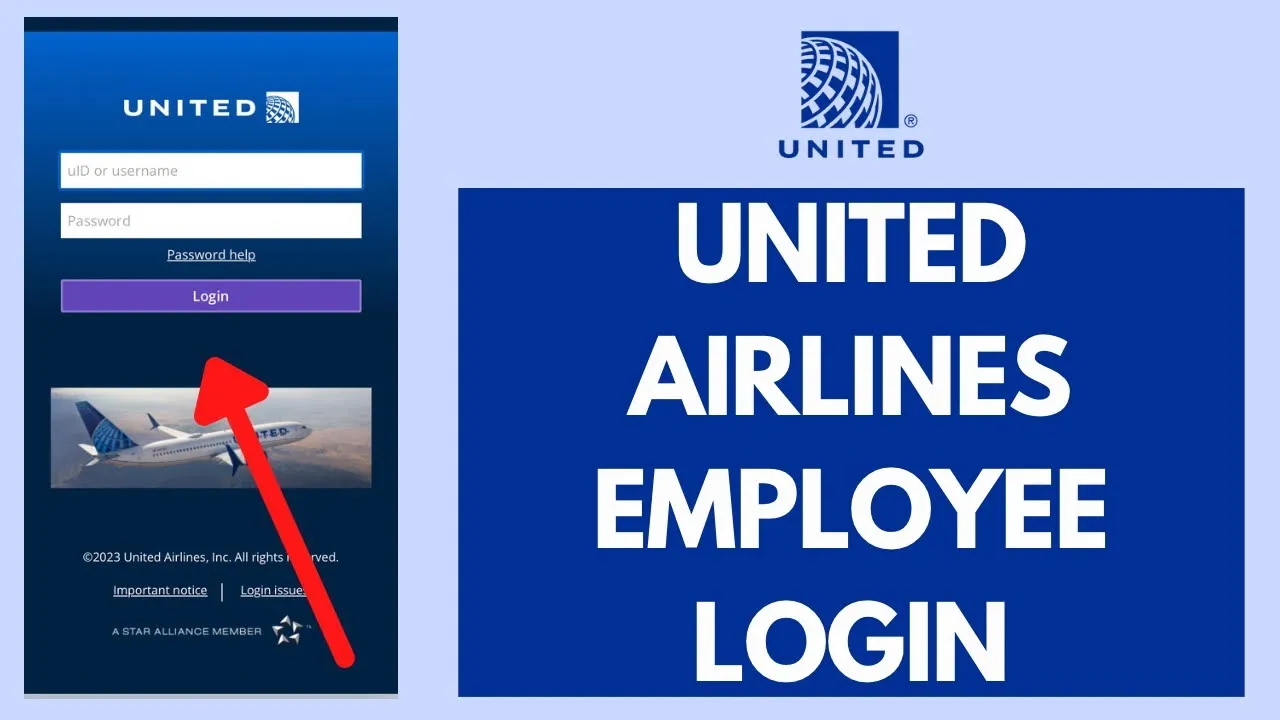
Step 1: Open a browser and go to flyingtogether.ual.com this is the URL. Not united.com. Not a Google search result. Type the URL directly into the address bar because search results occasionally surface outdated or cached versions of the login page that do not behave correctly.
Step 2: You will see the Flying Together login screen. Enter your Employee ID (also called your UAL ID or badge number) in the username field. This is the same ID on your employee badge typically a six-digit number.
Step 3: Enter your password. On first login after onboarding, this will be your default temporary password provided by IT during your hiring process. After that, it is whatever you set it to.
Step 4: Complete multi-factor authentication (MFA) if prompted United uses MFA as a security layer, typically via an authenticator app on your phone or a text message verification code sent to your registered mobile number.
Step 5: You are in. Your dashboard loads with your schedule, recent company news, and quick links to the systems most relevant to your role.
Logging In From a Personal Device vs. a Work Device
This matters more than most people think. United’s portal is accessible from personal devices you do not need to be on a work computer to check your schedule or access your pay stubs. However, some functions within Flying Together require network access through United’s VPN, particularly for roles that handle sensitive operational data.
- Personal device (home Wi-Fi or cellular): Standard login works for schedule viewing, pay stubs, travel benefits, HR self-service the majority of what most employees need day-to-day
- Personal device with United VPN: Gives broader access to systems that restrict external connections. Your IT department can provide VPN setup instructions if your role requires it
- Work device on United network: Full access to all systems. Required for some operational roles
Every Login Error You Will Encounter and Exactly How to Fix It
This is the section that saves you forty-five minutes. Every common United employee login error, what it actually means, and what to do about it in plain language.
“Invalid Credentials” Error
Means: Your Employee ID or password is wrong. Possibly both.
What to do:
- Double-check your Employee ID it is your badge number, not your email address, not your Social Security number, not your name
- Check that Caps Lock is off. Seriously. Check it.
- If you have changed your password recently and cannot remember the new one, go directly to the password reset option rather than guessing repeated wrong attempts can lock your account
Account Locked Out
Means: Too many failed login attempts triggered an automatic security lock. This is not a punishment. It is an automated system doing its job.
What to do:
- Wait 15 to 30 minutes and try again some lockouts are time-based and release automatically
- If the lockout persists, call the United IT help desk. The number is posted on your Flying Together welcome screen and is also distributed during onboarding. For most employees it is accessible through HR documentation in your onboarding packet
- Your manager or direct supervisor can also initiate an account unlock request through HR systems useful if you need access immediately for operational reasons
MFA Not Working or Code Not Arriving
Means: The multi-factor authentication step is breaking down. Usually this is a phone number mismatch, an app sync issue, or a cellular signal problem.
What to do:
- If your registered mobile number has changed since you set up MFA, you cannot self-reset you need IT to update the number on the backend before MFA works again
- If you are using an authenticator app (Google Authenticator, Microsoft Authenticator) and codes are not working, check that your phone’s date and time are set to automatic sync authenticator apps generate time-based codes that fail if your device clock is even slightly off
- If you are in an area with poor signal, codes sent via SMS may arrive delayed or not at all use Wi-Fi calling if available or move to an area with better coverage
Portal Loads But Shows Blank or Partial Screen
Means: Browser compatibility issue or a cached session conflict.
What to do, in order of how likely each is to work:
- Clear your browser cache and cookies entirely, then log in fresh
- Try a different browser Chrome works most consistently with Flying Together; Safari on older iOS versions occasionally causes rendering issues
- Disable browser extensions temporarily, particularly ad blockers and privacy extensions that can intercept session cookies
- If on mobile, try the desktop version of the site rather than the mobile-optimized view
| Error Type | Likely Cause | Fix Time | Who to Call If It Persists |
| Invalid credentials | Wrong ID or password | 2 minutes | IT Help Desk |
| Account locked | Too many failed attempts | 15 to 30 min auto-release | IT Help Desk or manager |
| MFA failure | Phone number change or clock sync | 5 to 10 minutes | IT Help Desk |
| Blank screen | Browser/cache issue | 3 to 5 minutes | IT Help Desk |
| VPN required error | Restricted function, no VPN active | Varies | IT Help Desk for VPN setup |
| Password expired | 90-day rotation policy | 5 minutes (self-reset) | IT Help Desk if reset fails |
Password Expired
United enforces a password rotation policy passwords expire on a regular cycle, typically every 90 days. When your password expires, the login screen prompts you to create a new one before you can proceed. This is not a lockout it is a scheduled security requirement.
If you missed the expiration prompt and cannot log in at all, use the self-service password reset link on the Flying Together login page. You will need access to your registered email address or MFA device to verify your identity before resetting.
New Hire Login: First-Time Access to the United Employee Portal
First-time access has its own set of friction points that are completely separate from the issues experienced employees hit. If you are a new United employee trying to log in for the first time, here is what the process looks like.
Your Employee ID is assigned during the hiring and onboarding process it is on your offer letter, your badge, and your onboarding documentation. If you cannot locate it, your recruiter or the HR team that processed your hire is the correct contact, not IT.
Your temporary password is distributed during onboarding either in your onboarding packet, via a secure email from IT, or provided in person during your first day orientation depending on your department and location. This is the password you use for your very first login.
First login checklist for new United employees:
- Confirm your Employee ID from your badge or onboarding documents
- Use your temporary password exactly as provided do not modify it before first use
- After successful first login, you will be prompted to set a permanent password do this immediately
- Set up MFA during your first session you will need your mobile phone accessible
- Explore the Flying Together dashboard to locate the systems relevant to your role before you need them urgently
New hire access issues are almost always resolved through your department’s HR contact or your direct manager, not through the general IT help desk, which handles existing employee technical problems more efficiently than onboarding access questions.
For context on what the United Airlines workplace looks like from a career and compensation perspective whether you are a new hire settling in or someone evaluating a move to United the breakdown of United Airlines flight attendant salary structures and compensation gives a detailed look at how pay scales across crew roles in 2026.
United Airlines Employee Travel Benefits: Booking Pass Travel Through the Portal
Here is the part that arguably makes the portal worth figuring out: the travel benefits. United employees and their eligible family members can book standby travel on United flights and, in many cases, on partner airlines at dramatically reduced or zero-cost fares. The pass travel system is accessed through Flying Together.
How pass travel works through the employee portal:
- Log into Flying Together and navigate to the Travel section or the pass travel link
- Create a travel profile for each eligible family member spouse, domestic partner, dependent children before they can use the benefit
- Search available flights and book standby positions standby travel means you travel on a space-available basis, which requires flexibility but costs a fraction of revenue fares
- Monitor your standby position in real time through the portal or the companion app many United employees use the app on travel days to watch their position move up as seats open
Eligibility rules for United employee travel benefits:
- Active employees: Full standby travel access from their hire date (subject to a brief waiting period at some roles)
- Retired employees (with qualifying tenure): Retained travel benefits at a reduced level the specific benefit level depends on years of service and role classification
- Spouse or domestic partner: Full eligibility, registered through the HR system
- Dependent children (under 26): Eligible with registration
- Parents: Eligible at a different fare category buddy passes or registered companion rates depending on the specific program tier
| Benefit Category | Who Qualifies | Fare Type | Booking Platform |
| Employee standby | Active employees | Free or near-zero cost | Flying Together pass travel |
| Registered companion | Spouse/domestic partner | Reduced rate standby | Flying Together pass travel |
| Buddy passes | Designated by employee | Reduced rate standby | Flying Together pass travel |
| Retiree travel | Qualifying retirees | Reduced rate, tiered | Flying Together pass travel |
| Partner airline travel | Active employees | Space available, varies | Partner airline system via Flying Together |
The standby system is genuinely excellent during off-peak periods and a white-knuckle experience during holidays and peak summer. Most experienced United employees develop an instinct for which routes and dates have comfortable space and which ones you do not gamble your vacation on.
What to Do When IT Cannot Fix Your Login (Escalation Path)
Most login problems resolve through the IT help desk. Some do not. When standard IT support has not resolved your access issue after 48 hours, here is the escalation path that actually moves things forward.
The most common reason IT cannot resolve an issue quickly is a backend account conflict usually related to a system migration, a role change, or a data entry error during onboarding or a position transfer. These require HR coordination, not just IT.
Escalation path when IT is stuck:
- Ask IT for a ticket number get confirmation that your issue is documented in their system with a reference number. This creates a paper trail and makes escalation easier
- Contact your department HR business partner not the general HR line, but the specific HR representative assigned to your department or work group. They have more direct access to backend account management than frontline IT
- Loop in your direct manager managers can initiate priority access requests through administrative channels when an employee cannot perform job functions due to a system issue. This is a legitimate and appropriate use of the escalation path
- For union employees: Your union representative can escalate access issues that are affecting your ability to work or access scheduling this is relevant if the login issue is causing you to miss bid windows or schedule visibility
For a broader look at how United’s internal structure and operations work useful context for understanding how the various employee systems and departments interconnect the United Airlines headquarters overview covers the organizational structure, primary locations, and how the airline’s internal operations are organized.
Mobile Access: Using Flying Together on Your Phone
The Flying Together portal is mobile-accessible through a browser on iOS and Android there is no dedicated standalone Flying Together app, but the mobile browser version functions well for most day-to-day tasks. For scheduling-specific functions, some crew roles use dedicated apps (eCrew or similar scheduling platforms) that link back to the Flying Together account.
Mobile tips that save time:
- Save flyingtogether.ual.com as a bookmark on your phone’s home screen it is not in the app store, so a home screen bookmark is the fastest access path
- Enable browser password saving with caution on shared or family devices keep it on personal work phones, clear it from any device you do not control exclusively
- Push notification setup for schedule changes runs through the scheduling platform linked from Flying Together, not the main portal itself set this up during your first login session so you are not missing alerts
- If the mobile browser view is not loading correctly, switch to “desktop site” mode in your mobile browser settings it renders Flying Together more consistently than the mobile-optimized view on some devices
Why United’s Employee Portal Matters Beyond Just Clocking In
Here is the honest take: Flying Together is not just a scheduling and payroll system. For United employees, it is the operational nervous system of your entire work relationship with the airline. The schedule you bid for, the benefits your family uses, the training that keeps your certifications current, the pay information you need for tax season all of it flows through this portal.
Understanding how to access it reliably, fix it when it breaks, and navigate its systems efficiently saves you real time and real stress across your career. The employees who know the portal well are also the ones who catch scheduling errors before they become problems, access travel benefits without drama, and manage their HR records without going through a manager for every update.
And if you are considering a career with United or already in it and evaluating how the career ladder works the breakdown of United Airlines customer service job roles and what they pay gives a useful picture of what the career pathway looks like from the ground level, alongside the employee portal access that comes with it.
Conclusion
The United Airlines employee login process is not complicated when you know the URL, have your Employee ID, and your MFA is set up correctly. It gets complicated at the margins expired passwords, phone number changes, browser conflicts, new hire access gaps and that is where most of the real friction lives.
The fix is almost always faster than it feels in the moment. Clear the cache. Check the URL. Confirm the Employee ID. Call IT with a specific description of the error rather than “it is not working.” Those four steps resolve 90% of login problems in under ten minutes.
Go find your schedule. Check your pay stub. Book that standby seat to somewhere you have been meaning to go since you started this job.
For everything else about navigating the airline industry whether you work in it or fly in it the full resource library is at TalkTravel. Every guide, breakdown, and airline deep-dive you need is on the TalkTravel blog.
Frequently Asked Questions
What is the United Airlines employee login portal URL?
The primary United Airlines employee portal is Flying Together, accessed at flyingtogether.ual.com. Type this URL directly into your browser rather than searching for it search results can surface outdated cached pages that do not load correctly. You log in with your Employee ID (badge number) and your current portal password.
What is my United Airlines Employee ID?
Your Employee ID is also called your UAL ID or badge number. It is printed on your employee badge and included in your onboarding documentation. It is typically a six-digit number. If you cannot locate it, contact your department HR representative or your direct manager IT cannot look up Employee IDs for security reasons.
How do I reset my United Airlines employee login password?
Go to flyingtogether.ual.com and click the password reset link on the login screen. You will need access to your registered email address or your MFA device to verify your identity. If you cannot complete the self-service reset, call the United IT help desk the number is in your onboarding documentation and on the Flying Together login screen.
Why is my United Airlines employee portal not loading?
The most common causes are browser cache conflicts, outdated browser versions, or active browser extensions blocking session cookies. Clear your cache and cookies, try a different browser (Chrome is most compatible), and disable ad blockers or privacy extensions temporarily. If the issue persists on multiple browsers, contact the IT help desk with a description of the specific error message.
Can United Airlines employees access Flying Together on a personal phone?
Yes. Flying Together is accessible on any device with a modern browser personal phones, tablets, and home computers. Save flyingtogether.ual.com as a bookmark on your home screen for fast access. Some restricted functions within the portal require United’s VPN, but the majority of day-to-day tasks schedule viewing, pay stubs, travel benefits are accessible without VPN from any device.
How do United Airlines employees book standby travel through the portal?
Log into Flying Together and navigate to the Travel or pass travel section. You can search available United flights, view standby availability, and book positions for yourself and eligible registered family members. Your standby position updates in real time on travel day. Eligible family members must be registered in your HR profile before they can use the benefit.
What should I do if IT cannot fix my United employee login issue?
Ask IT for a case ticket number to document the issue, then escalate to your department HR business partner not the general HR line. Your direct manager can also initiate priority access requests if the login issue is preventing you from performing job functions. Union employees can escalate through their union representative if the issue is affecting scheduling access or bid windows.